
§ How-to · Operate
Explore an estate in a browser
Start pravo serve, read the graph, find a resource, open and close modules, read the source, overlay a saved plan, find drift and share a view.
On this page
pravo serve shows the specification, the state and a saved plan of one root as a graph in a browser. It reads and never writes. This page starts the viewer, reads the graph, finds a resource, opens and closes modules, reads the source of a resource, overlays a plan, finds drift and shares a view. The viewer explains what the viewer shows, and pravo serve lists its flags, keys and parameters.
The pictures come from the platform estate. It has 47 resources in three modules, network, api and edge, built from the random, local and null providers, so it needs no cloud account. api.services.billing is an instance of the definition #Service, which a second package, kit, defines. The estate is in tools/serveshots/scenarios/platform of the pravo source tree, and the steps work in any root.
The pictures of steps 6, 7 and 9 were taken after three edits: a resource added to the specification, a resource removed from it and a port changed. Those pictures count 48 resources. One is declared and not created yet, and one is recorded and not declared.
1. Start the viewer
Run pravo serve in the root. It starts a server on the loopback interface, prints the address and opens it in the default browser.
pravo serve
The address carries a token. The first request sets a cookie and redirects to a page without the token, so the token does not stay in the address bar. The server accepts requests from this machine only, and every request for data needs the cookie. A page that is opened without the token asks for the address that pravo serve printed. --no-open prints the address and opens nothing, --port N picks the port, and --json prints the address as one line of JSON for a script.
Stop the viewer with Ctrl-C. It has written nothing, so there is nothing to clean up. A page that stays open says that the viewer is not answering. A new run makes a new token, so that page asks for the new address.
2. Read the graph
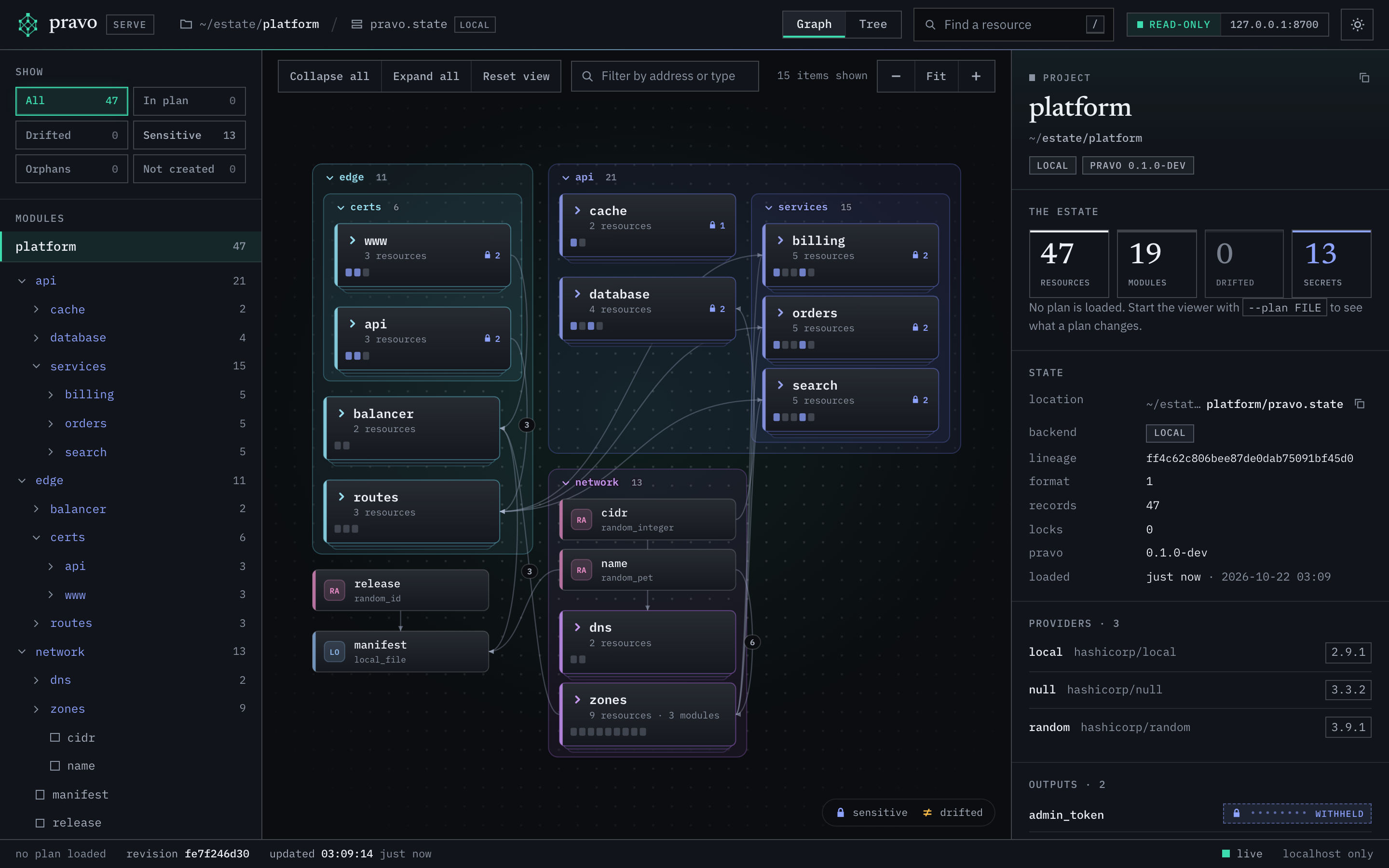
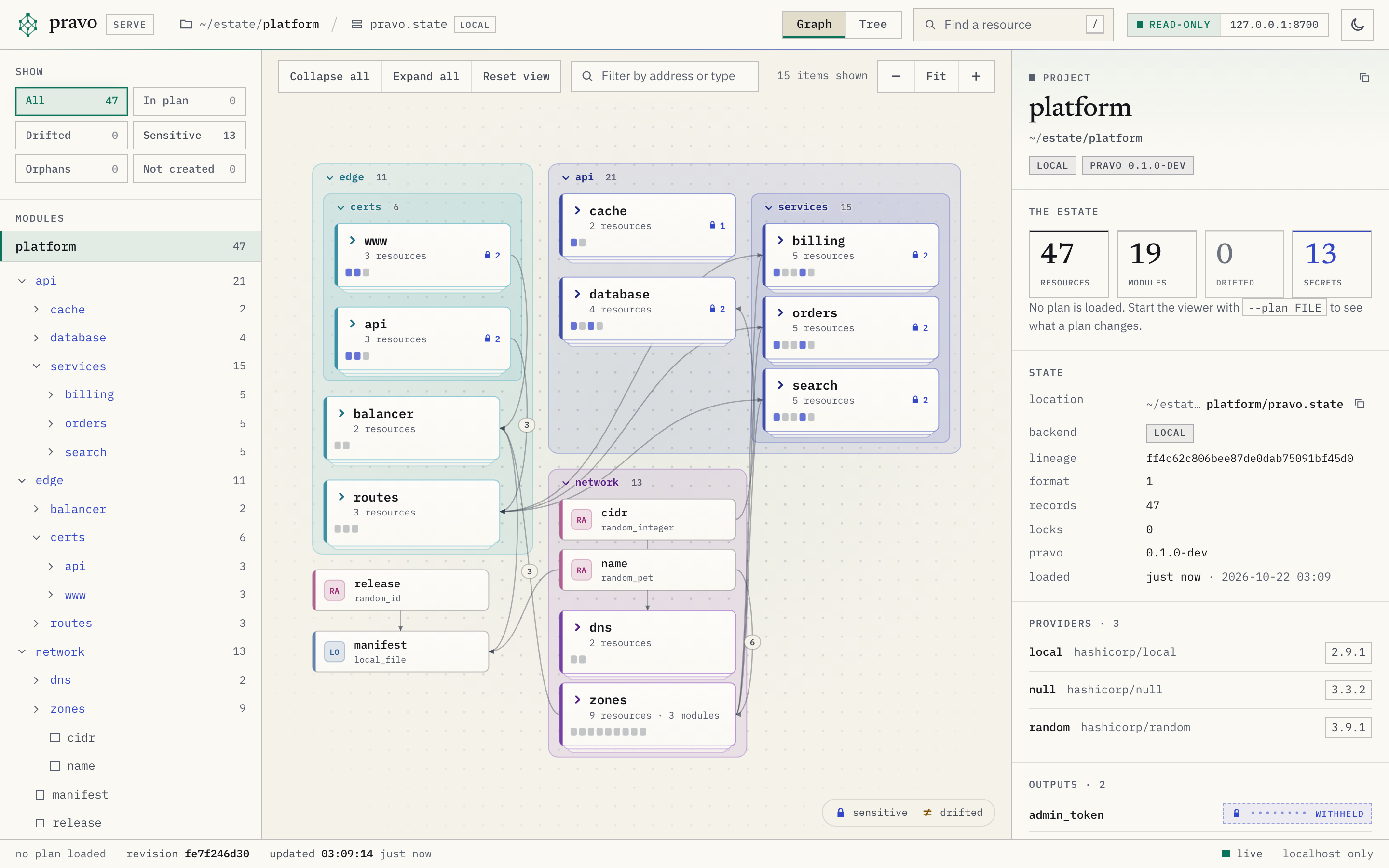
The page has a bar at the top and three columns under it. The bar names the project directory and the state, switches between Graph and Tree, opens the search, says that the page is read-only and where it is served, and switches the theme. The sidebar on the left holds the filters, under the heading Show, and the tree of modules. The graph is in the middle, with its toolbar. The inspector on the right shows the selected resource or module, or the project when nothing is selected, as in the picture.
The graph has one box for each resource and one lane for each open module. A lane is titled with the name of its module and the number of resources below it. A module that is closed is a card: its name, its resource count, the marks on its resources and one small cell for each resource. An arrow runs from a dependency to the resource that uses it, so data flows along the arrows. Select a resource, and its dependencies and dependents stay bright while the rest of the graph dims. Lines to what it depends on are blue, and lines to what uses it are amber. Rest the pointer on a box for a moment, or move to it with the arrow keys, and a small card gives its address, its type, its marks and how many dependencies and dependents it has.
The legend at the foot of the graph names the colours of the actions when a plan is loaded, the two kinds of line, the lock of a sensitive value and the mark of a drifted one. The toolbar above the graph says how many boxes it draws when that differs from the number of resources. Drag to move the picture, turn the wheel or pinch to zoom, and use the minus, Fit and plus buttons for the same. When the drawing is larger than the window, a small map appears in the corner: click or drag in it to move.
The inspector heads with the name of the resource, the modules that it sits in, each a link, its type and its provider. A strip under the head has the cells Action, Record, Revision and Refreshed, and Lock when a lock holds the resource. The Record cell says in sync, drifted, gone, declared only or orphan. The tabs are State, Source, Schema and History, and Change when a plan is loaded.
The State tab lists the attributes in three groups, Configured, Sensitive and Computed, in the order that the provider schema gives them, each with its type and whether it is required, optional or computed. The Computed group stays closed until you turn on the switch named computed. A filter box above the groups matches names and values. Under the attributes are what the resource depends on, what uses it, everything that a change to it can reach, with a button, Show in graph, that draws the reach, and the record: its revision and the times of its last read and its last apply. The Schema tab lists the attribute definitions of the resource type with the descriptions that the provider gives. The History tab lists the transactions that wrote the resource.
With nothing selected, the inspector shows the project: the state location, its lineage and record count, the providers, the policies and the outputs. A sensitive output has no value. Select a module, in the graph or the sidebar, and the inspector shows its counts, its resource types, its sub-modules and the places where it is written.
The status bar at the foot shows the state that the viewer reads. It says whether a plan is loaded, the revision of the data, when the viewer last read it and whether the connection that pushes changes is live.
3. Find a resource
Press /, or Ctrl-K or Cmd-K, to open the palette, or choose the search button in the bar. Type a part of an address, a type or the name of a module. The palette lists the modules and the resources that match, the up and down arrows move, and Enter goes to the one that is highlighted. With no text, it lists the top-level modules and, when a plan is loaded, the resources that it changes.
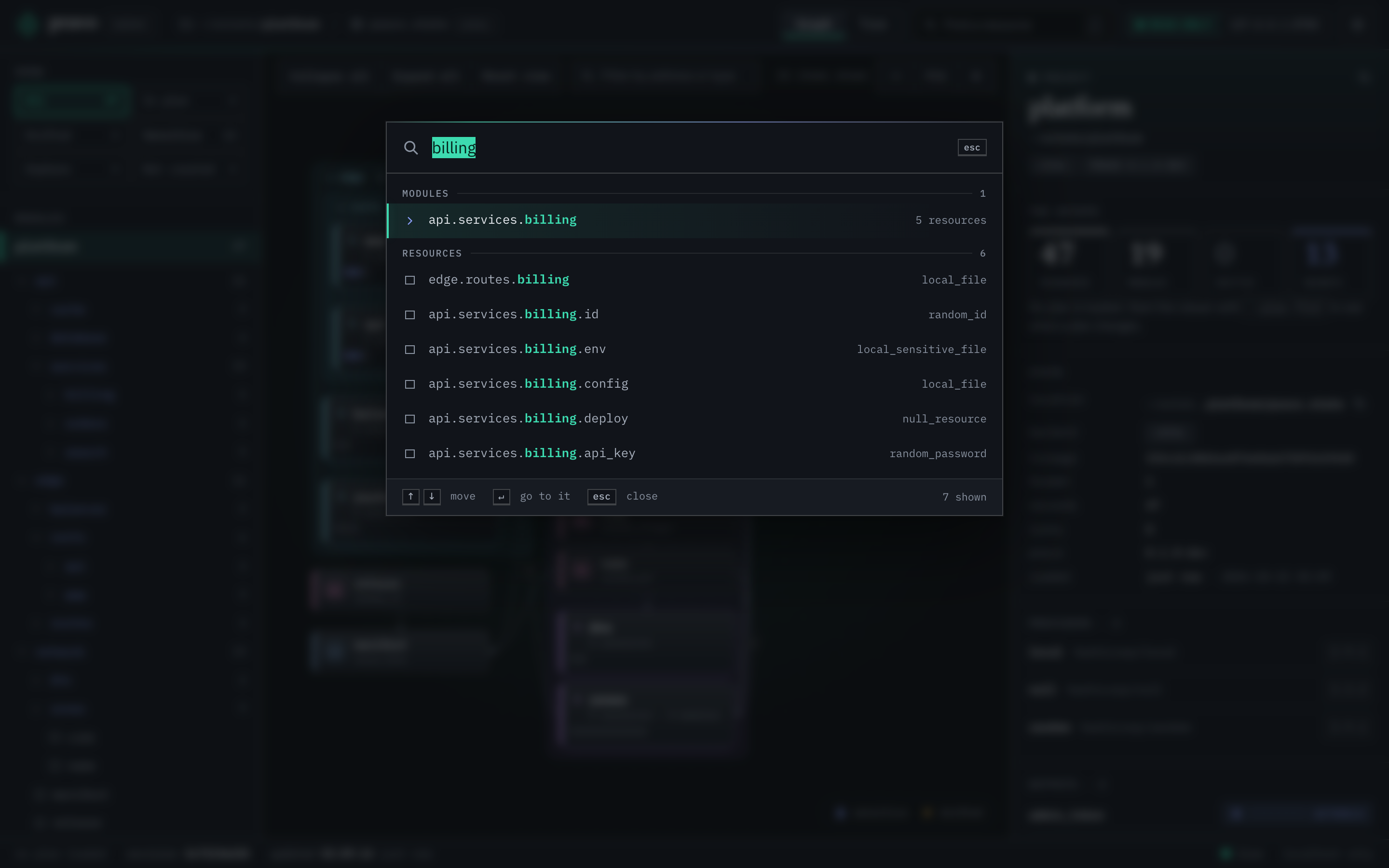
billing. It lists the module api.services.billing and the six resources whose addresses contain the word.The box above the graph, Filter by address or type, narrows what the graph and the table show to the matches, and says how many it found. The chips under Show filter by what the viewer knows about a resource: All, In plan, Drifted, Sensitive, Orphans and Not created. In plan counts the resources that a saved plan changes. Drifted counts the drifted and the gone. Sensitive counts the resources that hold withheld values, Orphans the resources that are recorded and not declared, and Not created the resources that are declared and not recorded yet. Each chip carries the number of resources that it matches, and a chip that matches none is dimmed. Choose a chip, and the sidebar lists only the matches, with the modules that hold them open, while the graph dims the rest.
4. Open and close modules
A graph of a hundred boxes is too much to read, so the page opens the estate at a size that you can read: modules that hold a change or a mark first, then the larger ones, as far as the drawing stays legible. The viewer describes the choice. The modules that it did not open are cards.
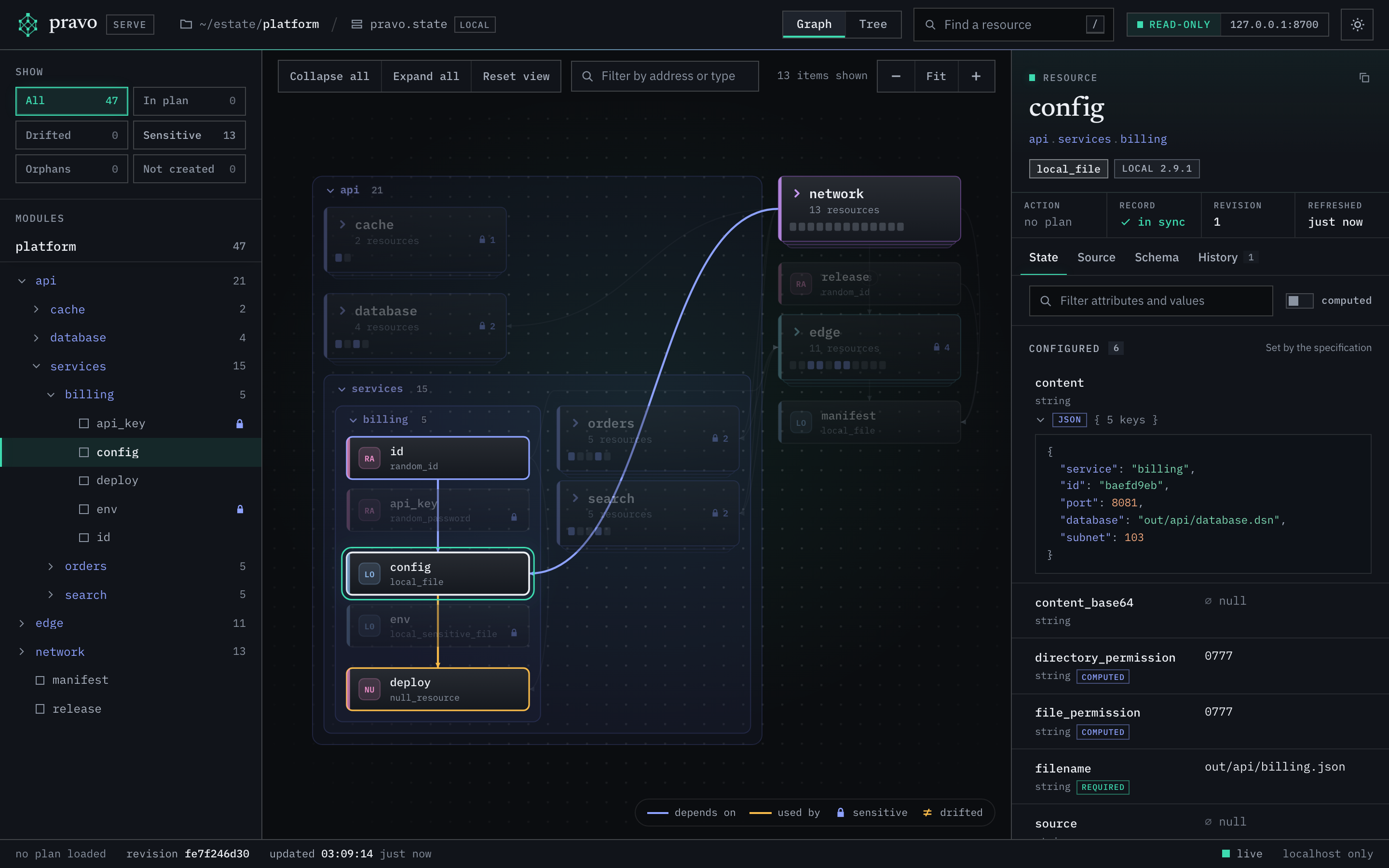
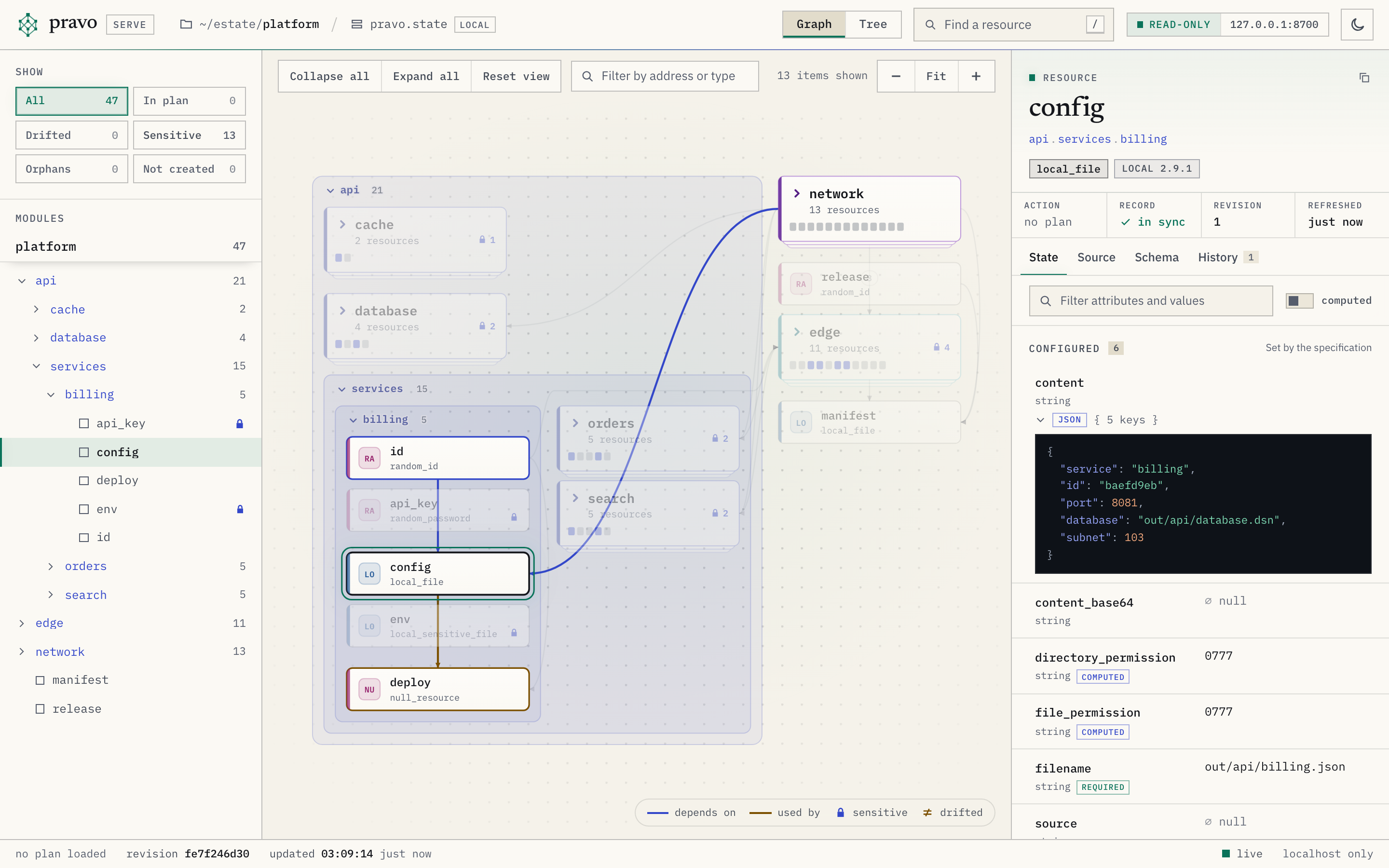
network and edge closed by a link. Each is one card with the number of its resources, and the arrows that cross them end at the cards.Click a card to open the module. The view moves to it, and the Zoom out button, or Esc, closes it again and returns to the view that you had. To close an open module, click the arrow in the title of its lane, or double-click the title. Collapse all and Expand all act on every module, and [ and ] do the same from the keyboard. A selection inside a module that you close moves to the module. Reset view, or 0, goes back to the first view: the modules that were open when the page loaded, no cluster open and the whole graph in the window.
Closing hides detail and removes no resource. The sidebar still lists the resources of a closed module. Selecting one in the sidebar, in the palette or through the address opens the modules that hide it.
A large estate needs the same step many times. The fleet estate has 143 resources in three regions, each with a production and a staging environment. Here one region is open and the others are cards, and the module eu.prod is selected.
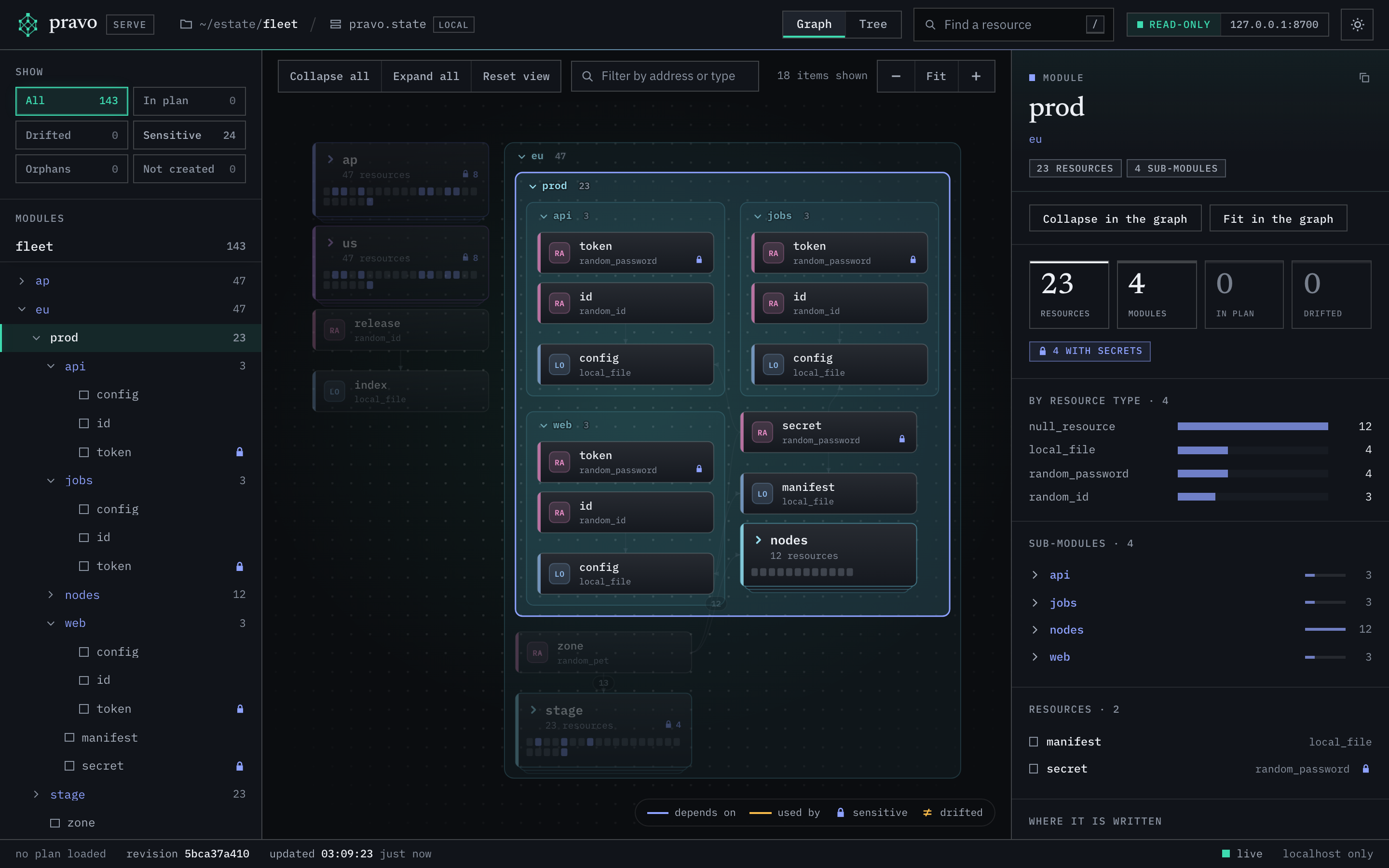
fleet estate with the region eu open and its production environment selected. The three services of the production environment are open beside its secret and its manifest, and its pool of nodes is a card. The staging environment and the regions us and ap are cards.A module that holds eight or more resources of one type draws them as one cluster: a box that names the type and the count. Click the box to open the cluster and list its members in place, in their module. The control under the members, group of 12, closes it again.
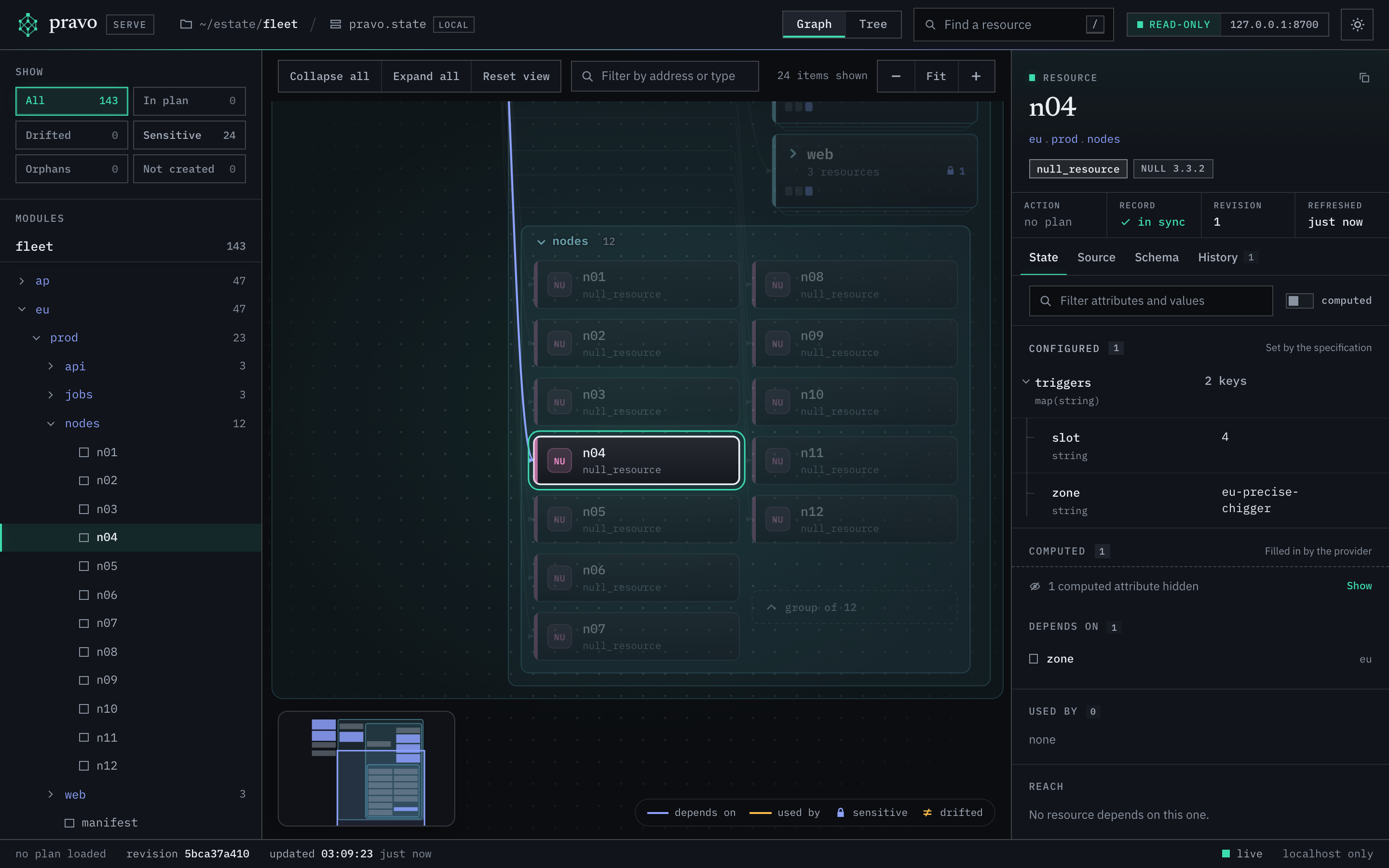
eu.prod.nodes open in place. Its twelve resources of the type null_resource are listed in the module, and n04 is selected.5. Read the source of a resource
Select a resource and open the Source tab. It shows the lines that write the resource. A resource that comes from a definition has two places: the definition, and the instance that fills it in.
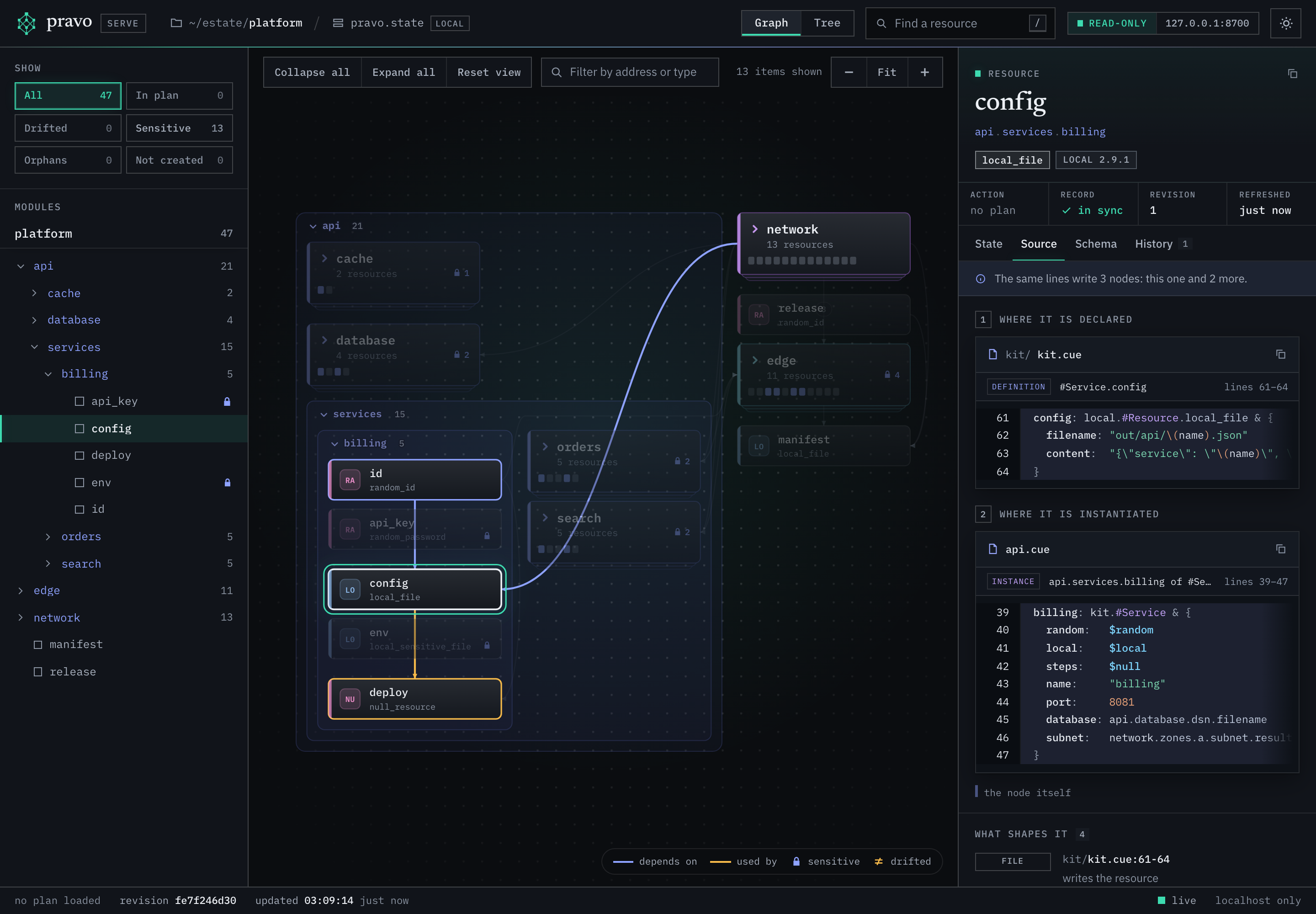
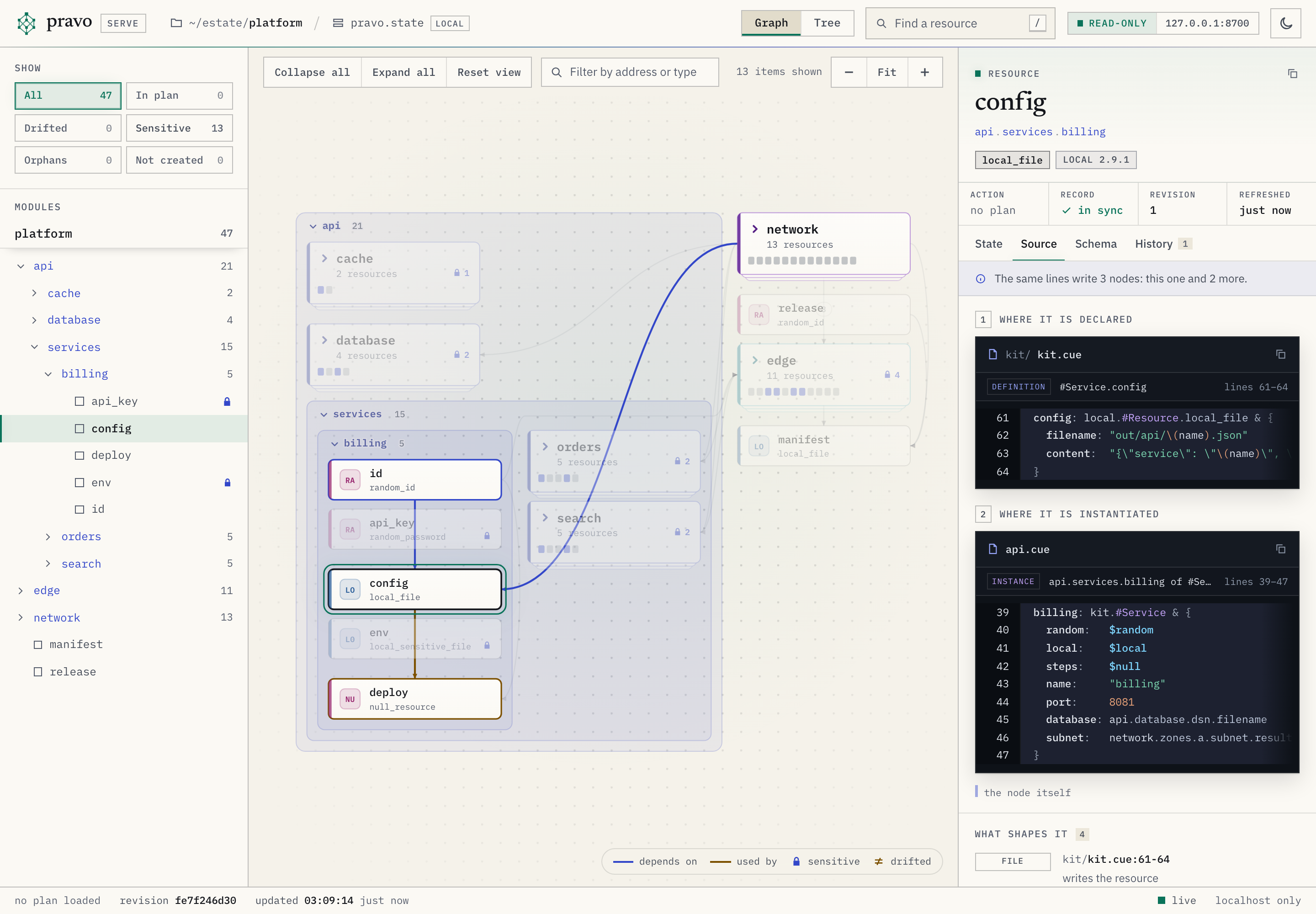
api.services.billing.config. The first block is the definition in kit/kit.cue, and the second is the instance in api.cue.The two files that the figure shows are these. The lines of config are marked in the definition, and billing is marked in the file that instantiates it.
// #Service is one service of the api: an identity, a key that the service
// presents to the database, its rendered configuration and the step that
// deploys it. The key is sensitive, so the file that holds it is too.
#Service: {
	random!: rnd.#Provider
	local!:  loc.#Provider
	steps!:  nul.#Provider

	name!:     string
	port!:     int & >1024 & <65536
	database!: string
	subnet!:   int

	id: random.#Resource.random_id & {byte_length: 4}

	api_key: random.#Resource.random_password & {
		length:  32
		special: false
	}

	config: local.#Resource.local_file & {
		filename: "out/api/\(name).json"
		content:  "{\"service\": \"\(name)\", \"id\": \"\(id.hex)\", \"port\": \(port), \"database\": \"\(database)\", \"subnet\": \(subnet)}\n"
	}

	env: local.#Resource.local_sensitive_file & {
		filename: "out/api/\(name).env"
		content:  "SERVICE=\(name)\nAPI_KEY=\(api_key.result)\n"
	}

	deploy: steps.#Resource.null_resource & {
		triggers: {
			config_hash: config.content_sha256
			service_id:  id.hex
		}
	}
}
api: {
	...
	// Each service is an instance of the definition in kit/kit.cue.
	services: {
		billing: kit.#Service & {
			random:   $random
			local:    $local
			steps:    $null
			name:     "billing"
			port:     8081
			database: api.database.dsn.filename
			subnet:   network.zones.a.subnet.result
		}
		...
	}
}
The definition is the part of the estate that several resources share, so the tab says how many nodes the same lines write. A line that assigns a string literal to a sensitive attribute is masked, and the line carries a mark. A file that changed after the state was written carries a note, since its lines may differ from what created the resource. Under the blocks, What shapes it lists the files, the cached modules, the tags and the policies that contribute to the resource. The tab shows only files that the evaluation loaded.
6. Overlay a saved plan
The viewer does not make a plan. Save one with pravo plan --out, and start the viewer with it.
pravo plan --out change.plan
pravo serve --plan change.plan
A resource that the plan changes carries a badge and a ring in the colour of its action, and the legend names create, update, replace, delete and not read. A resource that the plan did not run reads not read. The In plan chip counts the resources that the plan changes, and the status bar says how many of the resources the plan ran, as planned 7 of 48, and how many it did not read. With nothing selected, the inspector shows the summary of the plan: the resources to add, change, destroy and read, the blast radius, the file and when it was made. A plan that cannot be applied, because the specification or the state changed after it was made, is marked stale and shown with the reasons.
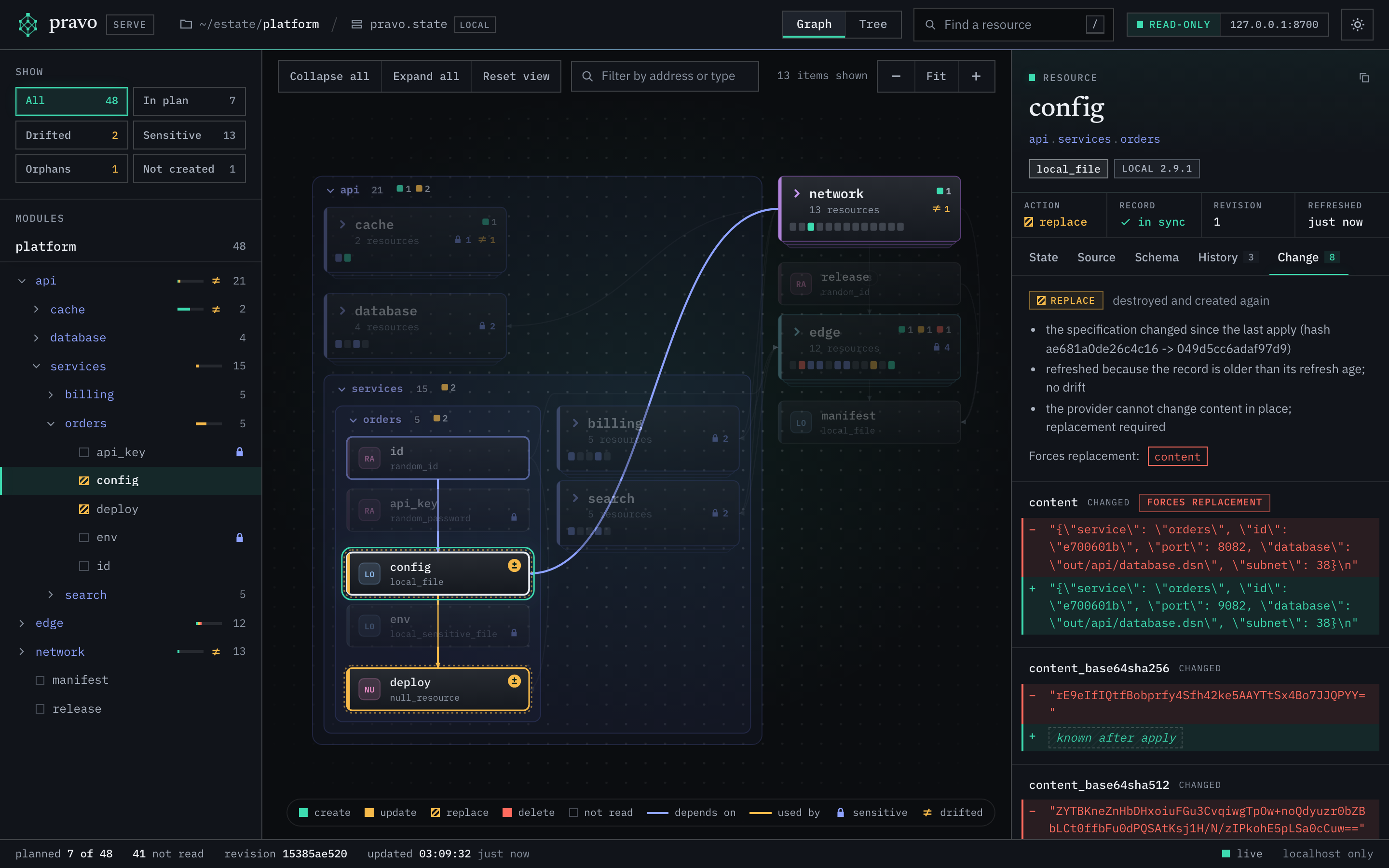
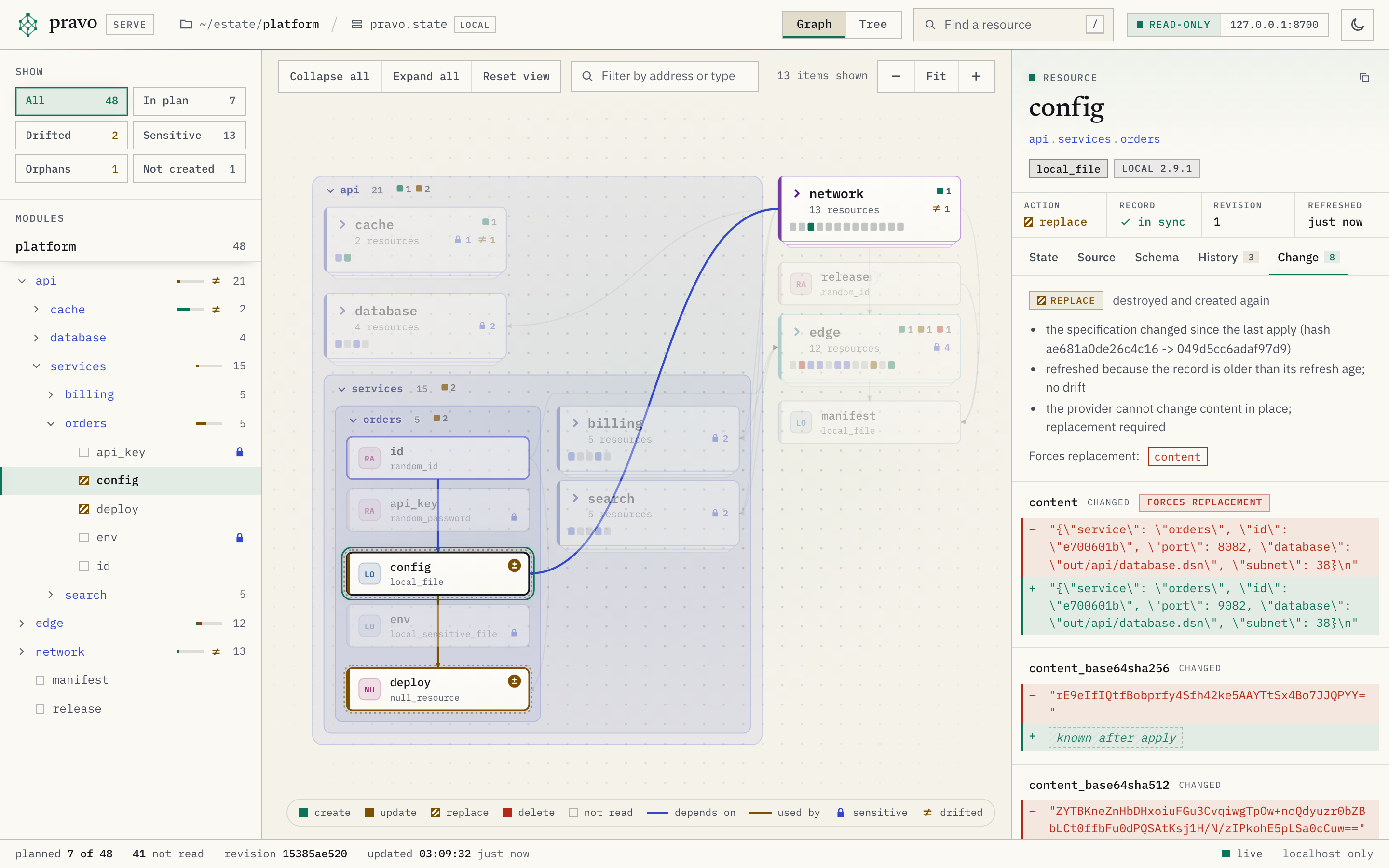
network and edge closed. The port of orders changed, which replaces its configuration, its deploy step and its route. The Change tab of api.services.orders.config shows the action, the reasons and the attribute that forces the replacement.The Change tab lists the reasons that the plan gives, the attributes that force a replacement and each attribute that changes with its value before and after. A value that the viewer withholds is withheld in the plan too. A value that is not known until the apply reads known after apply.
7. Find drift
pravo drift reads every resource and marks the records whose real object differs or is gone. The viewer shows the marks. Choose the Drifted chip to see only those resources.
pravo drift
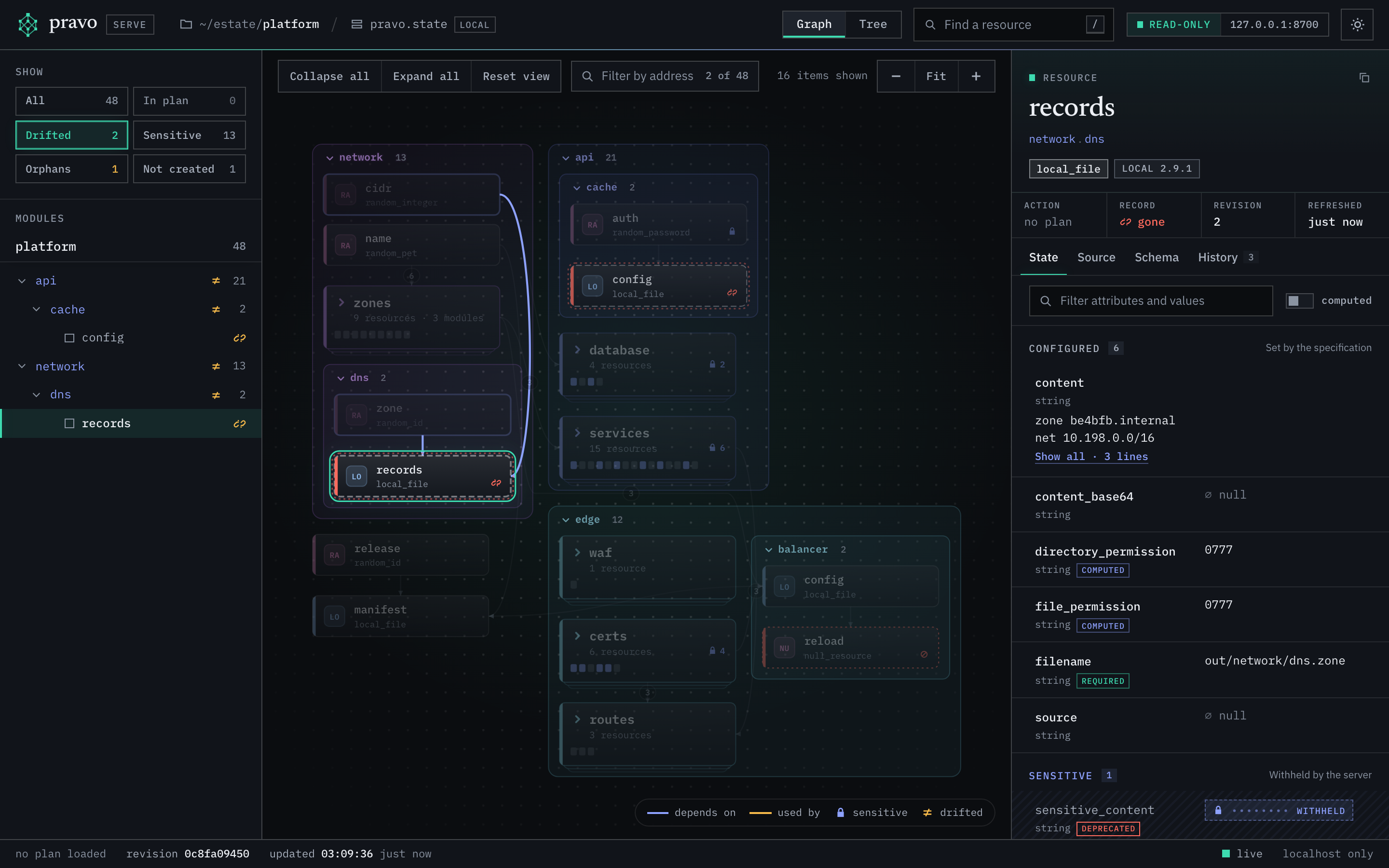
network.dns.records was edited outside pravo, and the file behind api.cache.config was deleted. The provider local reports both as gone.The viewer reads the marks from the state. It does not read the real objects, so it shows the drift that a command found and does not look for more. Run pravo drift again, and the viewer updates when the state changes: a notice says that the state changed and how many resources differ, and the resources that changed flash once.
8. See what the viewer withholds
Select a resource that holds a secret. The State tab lists its sensitive attributes in the Sensitive group, with a name and a type and a locked mark where the value would be. Hover over the mark, or move the keyboard focus to it, for the reason.
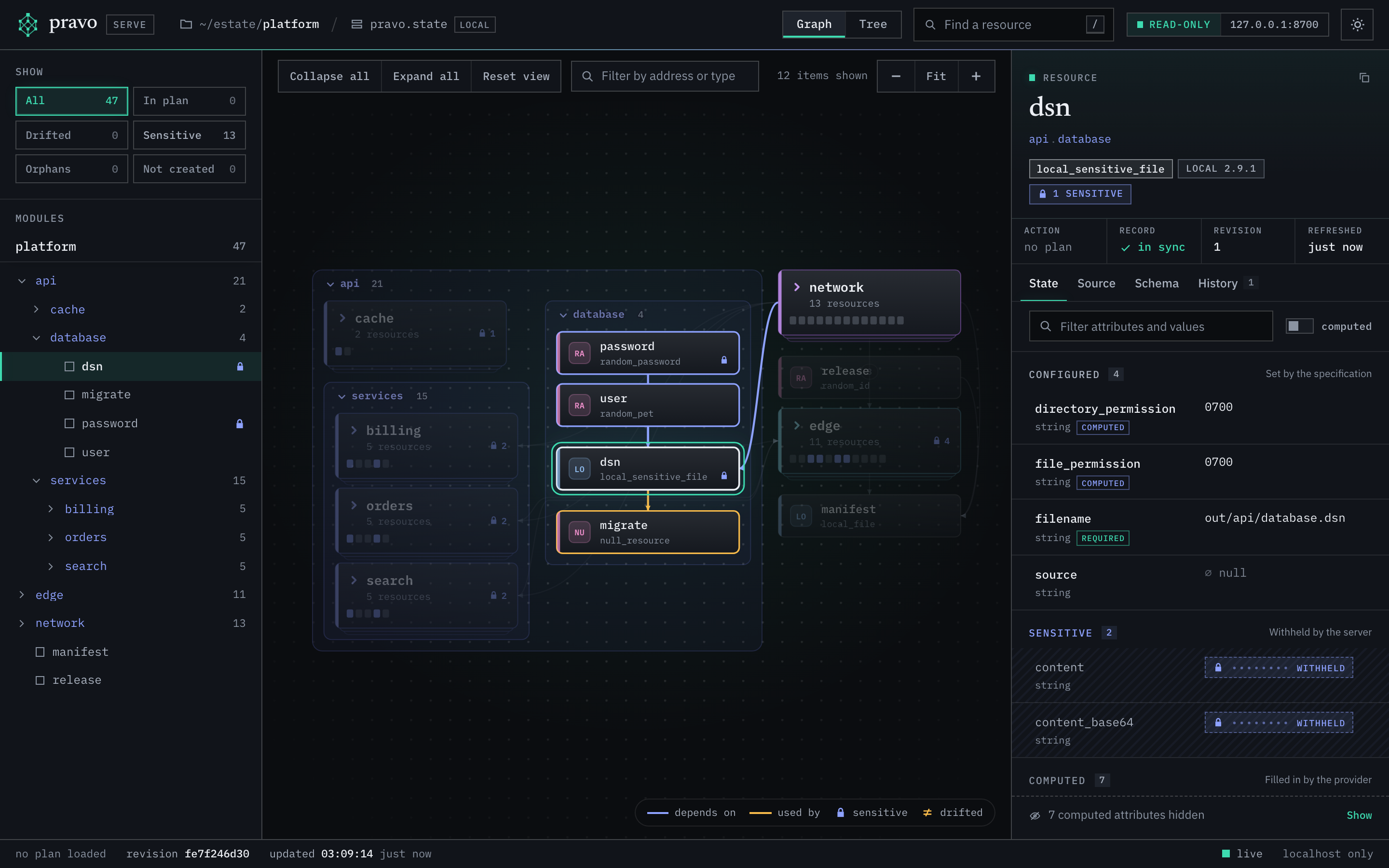
api.database.dsn, the file that holds the connection string of the database. The attributes content and content_base64 are listed and have no value.The server removes the value before it answers. The page never has it, and a copy of the page's data holds no secret. The server also withholds a value that contains a secret although the schema does not mark it: api.cache.config is a plain file that embeds the password of the cache, and its content is withheld too. The viewer lists the rules.
9. Share a view by link
The viewer keeps its view in the fragment of the address: the selected resource or module, the tab, the modules that you opened or closed, the filter, the search text, the view and the theme that you chose. Copy the address to share the view.
http://127.0.0.1:PORT/#/?sel=api.services.billing.config&tab=source&collapse=network,edge&theme=dark
A link reproduces the view on a viewer that shows the same estate. The fragment is everything after #. Send it, and the other person pastes it after the address of their own viewer, because each viewer has its own port and token. The table in pravo serve lists every parameter.
motion=off turns every animation off. Use it when you take a picture. The pictures on this page were taken from such links by tools/serveshots.
The theme button in the bar, or t, switches between the light and the dark theme. Without a theme parameter the viewer follows the system and the last choice that you made in the page.
The Tree button switches from the graph to a table, and g switches back. The table has a row for each resource and the columns Address, Type, Mode, Module, Status, Action, Rev and Refreshed. A narrow table leaves out Mode and Rev. Click a heading to sort by it, and click it again to reverse the order. The up and down arrows move the selection. The filters apply to the table as they do to the graph, and the filter box also matches the action and the mode.
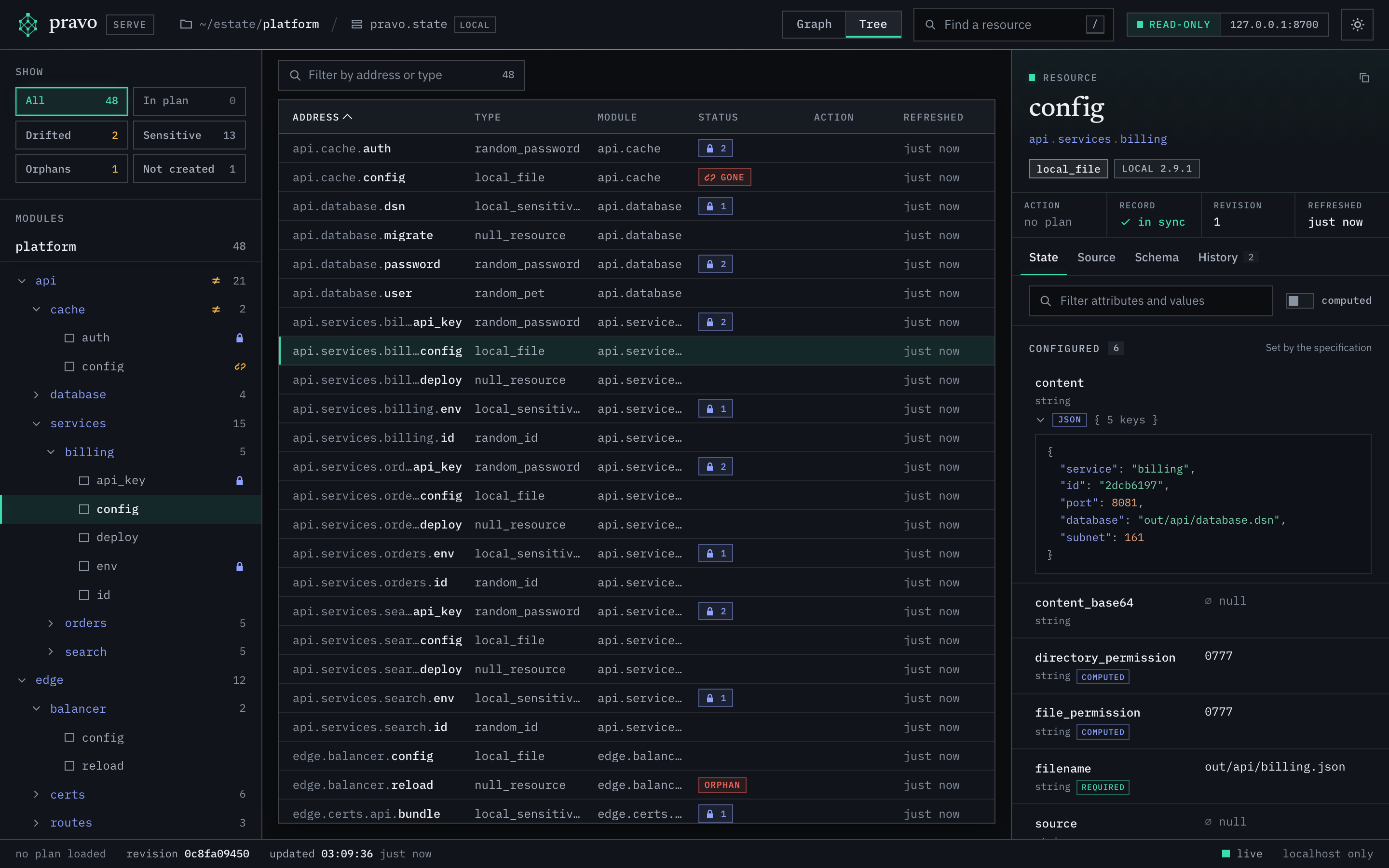
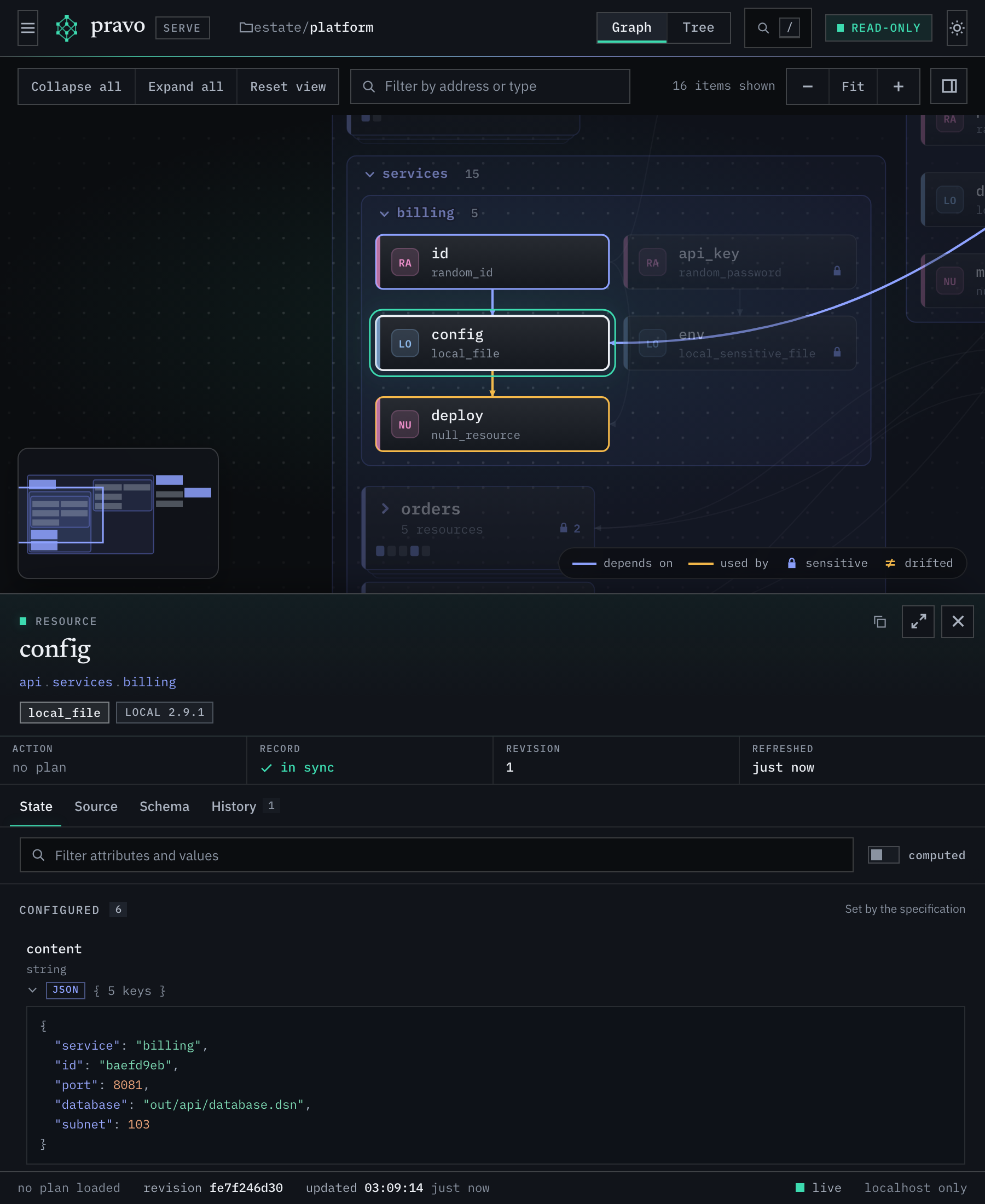
gone for api.cache.config and orphan for edge.balancer.reload.Below 1100 pixels the sidebar becomes a drawer that the menu button in the bar opens, and the inspector is a panel under the graph. The button at the right of the toolbar shows or hides the panel, and the button in the corner of the panel makes it taller.
10. Use it in a container or over SSH
The viewer listens on the loopback interface of the machine that runs it, and no flag changes that. A browser on another machine cannot reach it directly.
To view an estate on a remote host, forward a port over SSH. Start the viewer on the host with a fixed port, and forward the same port number to your machine, so that the address that the browser sends is the address that the server expects.
ssh -L 8700:127.0.0.1:8700 host
pravo serve --no-open --port 8700
The server compares the Host header of each request with its own address and answers 421 to any other. A forward from port 9000 to port 8700 sends localhost:9000 and is refused. Use the same number on both sides.
Copy the address with the token from the output of the viewer, and open it in the browser on your machine. A request without the cookie that the token sets is answered with 401, so a link without the token shows nothing.
In a container, the viewer listens on the loopback interface of the container. A port that the container runtime publishes is reached through another interface, so publishing it does not reach the viewer. Run the viewer in a network namespace that the browser can reach, or forward over SSH from the host that runs the container.
Recap
pravo serveshows the specification, the state and an optional saved plan as modules and resources. It reads and writes nothing.- The first view opens the modules that fit. Click a card to open a module, and open a cluster to see its members.
- The Source tab shows the definition and the instance that write a resource. The Change tab shows what a saved plan changes.
- A value that is sensitive, or has a secret's name, or contains a secret, never reaches the page.
- The fragment of the address holds the view, so a link reproduces it. Press
?in the viewer for the shortcuts.
Next: pravo serve lists the flags, the keys and the endpoints. The viewer explains what each mark means.